Powered by Blogger.

Friday, 9 November 2012

How to Speed up Your PC Without Any Software

0 comments Posted by Imran at 23:32
Speed Up PC
Your PC don't give the best out of its performance due to many causes that would be present in any computer. Those causes are extremely important to limit the performance of a Computer running Windows as the operating system. If you want to get the best out of your computer (RAM, Processor and Disk Space) then you must follow this step by step tutorial to Clean, Prepare & Optimize your Windows PC without using any Software & Programs.


Learn: How to Speed up Your PC Without Any Software


Startup Programs

1) Click Start> Run...  

2) Type msconfig in the text box, then Hit OK

3) Go to Startup Tab

4) Disable all the unimportant programs (such as: MSN, Skype, Facebook update, Google Update...)

5) Click OK and restart the computer.

msconfig startup

Uninstall Unnecessary Programs

1) Go to Control Panel

2) Under Programs click Uninstall Programs

3) There, you can uninstall all unnecessary programs (such as: App Updater...)
control pannel

Use USB Flash as RAM

You can profit from your USB Flash drive as RAM Memory and boost the performance of your computer. You can follow the tutorial from here:


Clean Temporary and Unused Files

1) Go to Computer

2) Right Click the Drive you want to clean (e.g: C:\ )
3) Click Properties

4) Click Disk Cleanup

5) Wait a little, select the stuffs you want to Clean (such as: Temporary Internet Files, Offline Webpages...)
6) Click OK then Delete Files
My Computer Properties

Done! Remember to restart your Computer after such a long changes. Hope it helped you too.


Read More »

Thursday, 8 November 2012

How to Login to Multiple Facebook Accounts with Google Chrome

0 comments Posted by Imran at 00:26
You need sometimes to open multiple facebook accounts in the same time, so you use different Web Browsers or you Logout from your first account and login to your second account. This method will show you How to Login to Multiple Facebook Accounts at Once using Only Google Chrome.


Learn: How to Login to Multiple Facebook Accounts with Google Chrome


1) Login to your First Facebook Account as always.

2) Now Click the Wrench to bring Google Chrome options, and Click New incognito window (or Press Ctrl+Shift+N)
3) By clicking New incognito window it will bring you a new private window that stores all cookies apart (cookie don't collapse with the first account's cookie) You'll notice a secret agent in the top left corner of Google Chrome.


4) Go to Facebook.com in the new private window, and Login to your second account as always.
NB: This method works also for: Gmail, Hotmail, Yahoo Mail, Twitter and many other accounting websites.

Read More »

Wednesday, 7 November 2012

How to Find Who Deleted you On Facebook

0 comments Posted by Imran at 23:20
unfriend finder
Edouard Gatouillat is geek hacker who have developed a new Browser plugin script that shows you who have deleted / Unfriend you on Facebook. This script is called Unfriend Finder, it keeps tracking and monitoring your friends list and notify you whenever a Friend have been disappeared since your last login. This is not a Spam and actually works on any Web Browser ( Google Chrome, Mozilla Firefox ...).


How to Find Who Deleted you On Facebook 

1) Download & Install this Extension Unfriend Finder (works for all browsers)

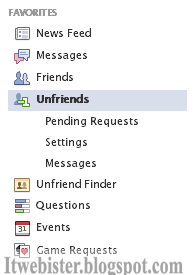
2) Now a new tab will appear in the left side of Facebook homepage :
left unfriend tab
3) And in the Top header of Facebook :

unfriend header
4) Now, whenever a friend have unfriend you from his list, you'll get notified in 3 ways:

. You'll receive a simple notification.
. You'll get notified on the left side (step2)
. You'll be notified on the top header (step3)

unfriend notification


Read More »

How to Disable 'Seen' in Facebook Chat

0 comments Posted by Imran at 12:24

Disable Seen in Facebook
"Seen" is the new Facebook Chat update, it allow you to know if the receiver have read your message. Many of Facebook users don't like this new update, they simply don't want to know if their message was read or not. Removing this new update of Facebook Chat is so easy as following this step by step tutorial.


How to Disable and Remove 'Seen' in Facebook Chat ( Google Chrome )


2) Click Add to Chrome

3) Click ADD to confirm download.

4) The extension will be added automatically.

5) Now just navigate to Facebook.com

6) Start chatting and you'll notice that 'Seen' was disabled.

Done! If you want to disable this plugin, click on it (Right top on Google Chrome) and Click OFF
Read More »

Monday, 5 November 2012

How To Post Photos/Status On Facebook Multiple Pages At Once

0 comments Posted by Imran at 02:43

post on facebook multiple pages at onceNow a days on facebook people want to grow throw there pages on facebook so they post photos and share on others wall to promote there pages, and they like to have more pages,but it is difficult to posts photos or status update on all pages to stay update Here I (the Owner of site itwebister.blogspot.com) show you how to post Photos/ facebook Status on all pages even on your wall at once.


How To Post Photos/Status On Facebook Multiple Pages At Once


1. Go to https://apps.facebook.com/postcron/

2. On Free >> Go to Postcron

3. connect account If your pages are not connected

4. right status or add photo on add photo tab

5. schedule the post if you want to post it at the correct time or click on post now to post just now

6. and you are done.

Read More »

Thursday, 1 November 2012

Learn How To Add Webiste in All Search Engines And Get Top 10 Ranking In SEO

0 comments Posted by Imran at 00:59

Internet Business Promoter (IBP) is a multi-award winning website promotion software tool. IBP helps you get high search engine rankings:
*The Best SEO Software of 2012, 1st Ranking SEO Software.

 * Get top 10 rankings on Google, Yahoo, Bing Search and others.

* Get more website visitors and increase your revenue.


* Outperform your competitors.

 
We constantly monitor the search engines and keep track of the latest search engine changes so that IBP is always up-to-date. You'll always get accurate results when submitting to the search engines or when checking your search engines rankings.


INTRO

IBP offers everything you need to successfully promote your website. It is a proven suite of professional web promotion tools that helps you with all aspects of website promotion and search engine optimization. Search Engine Ranking Checker (300+ search engines): 

Check your rankings on more than 300 search engines (including Google, Yahoo and Bing Search) from more than 30 countries. Search Engine Submitter (to 500+ search engines) Submit your website to more than 500 search engines, directories and special interest sites from more than 30 countries, including Google, Yahoo and Bing Search. Top 10 web pages Optimizer:


Installation Instructions....


1.Run IBP-Installer.exe

2.To Install Axandra Internet Business Promoter (IBP)
 follow The Onscreen Instructions By The Installer
 
3.When Finish Installing Untick-> [ Run IBP.exe ]
And Click Finish To Complete The Setup,

4.Now Dont Start The Program And Make Sure Its Not Running,

5.Now UnZip The File IBP - Itwebister.blogspot.com v9.7.1.Zip


6.Now Go To The Folder IBP - Itwebister.blogspot.com v9.7.1 ==>Keymaker==>ARELIS-Keygen.exe/IBP-Keygen.exe
try Both And Copy The Serial Num
Now Start The Program
6.Fill In Your Info, And Click Next, Now When The Program Starts
 
7.Go To Help-> Enter Unlock Code..., Now Fill Your Own Name Or Company
 
Name And Copy The Unlock Code Below And Paste In The Program Where Stated
And Click [ Unlock ] And Then Ok,
8. Now See at the right side

9. Go To IBP tab And Click on Submite Your Site To The Search Engines

Decide Method, And You Are DONE!


Read More »

How to Get All Internet Connection on Public WiFi

0 comments Posted by Imran at 00:01
All Internet Connections
When using a Public WiFi Network in a Cybercafe, School network or even your Home WiFi, you'll probably be sharing the Internet with too many Computer, that what makes the internet connection really slow. Have you dreamed that you can cut off the Internet of all your Network Neighborhood's internet connection to get the Maximum speed? Now you can use the same feature that can be used on netcut, but without any Software.


 Learn: How to Get All Internet Connection on a Public WiFi for Faster Internet 


1) Right Click on Computer > Device Manager

2) Scroll down, expand the Network Adapters list, and Double Click your WiFi Adapter.

 
Network Adapters

3) Then Click Advanced tab to show all available modifications.

Device Manager Advanced Tab


4) Select the property called Speed & Duplex and change the Value from Auto Negotiation to 1.0 Gbps Full Duplex
1.0 Gbps Full Duplex

5) Click Ok to Apply all settings, you may also need to restart the computer.
Done! You'll now get all the Internet Connection and speed up your LAN & WLAN Bandwidth to the maximum speed. Check out Also:

How to Reveal Who Hacked your WiFi
Read More »
 

Popular Posts

© 2011. All Rights Reserved | ITWebister | Template by Blogger Widgets

Home | About | Top