Powered by Blogger.
Showing posts with label Med. Show all posts

Thursday, 30 May 2013

How To Make Google Chrome To Use Less RAM

0 comments Posted by Imran at 05:06
Chrome Uses Less Ram

Most of the people now prefers Google Chrome as the greatest web browser ever released, it's well known with the best performance and simple user interface which makes it easy to use for all kind of people, it takeover more than 50% of the Web Browsers usage in the world. However some of its users might face a serious problem about Huge Memory Consumption from Chrome, it starts draining your computer's available RAM and prevents you from performing any other tasks like gaming. So here are some few tips that will help you reduce Google Chrome's memory leaks.


1. OneTab Extension


OneTab is a great extension that helps Chrome reduce memory usage by closing and regrouping all the opened tabs in one click. Whenever you find that you opened many tabs and you don't need any of them for the moment, just click OneTab from the extension bar and it will close all those tabs to regroup them in a single list for later use. OneTab can help you reduce more than 90% of RAM


Onetab Extension For Chrome


2. Kill Memory Eating Tabs / Extensions


Google Chrome came with a built-in task manager that will help you identifying memory eaters (Tabs and Extensions). It lists all opened and running pages with their memory usage. Pages that uses too much of RAM are pages running many scripts (Javascript...), plugins(Flash, Java...), after identifying them you just kill their tasks. Here's how to do it:


  • Press Shift + Esc (opens Task Manager)
  • Double Click the Memory tab (reorders tasks by memory)
  • Select the pages with High Memory and click End Process


3. TGS Extension


TGS or The Great Suspender is a very important Chrome utility that auto kills idle tabs, what that means? Ok, while using Google Chrome all opened tabs are draining memory even when we don't use them, so that's why we use TGS as it helps us auto killing those non-used tabs (idle) after specified time (5minutes to 60 minutes) which will improve your computer's speed by gaining more memory.
After you install The Great Suspender, Right Click the extension > Options and setup your configuration (whitelist, timeout..)

Read More »

Saturday, 27 April 2013

How To Type Faster? 5 Websites To Learn To Type Faster

0 comments Posted by Imran at 01:10
Living in the digital world where typing is necessary for every person, Learning the way of proper usage of keyboard is necessary for every person, A person should be more productive and get thinks done quicker with a keyboard, typing faster can enable you to keep up with your brain.
In this article, we’ll give you Some tips to get you started typing faster and proper and also introduce you some websites that may help you to improve your typing. Some of the tips are quite obvious ones, but we’ll provide you with a few apps to help you practice and learn faster.


Get Rid Of Bad Habids


Getting rid of your bad typing habits is probably the hardest thing to do. You’ve probably been using the same typing method since you started using a keyboard, right down to where you place your palms. If you’re an FPS (First Person Shooter) gamer you’re probably used to placing your left hand on the WASD keys, and may have stronger fingers on your left hand than your right (speaking from experience here).
Others may type only with two fingers, hovering over ten (or more) keys each, always having to keep their eyes on the keyboard to get the right keys. Although you might be typing fast with only half of the needed fingers, you have to put down your foot (or your hands) and break that habit immediately.


Use All 10 Fingers


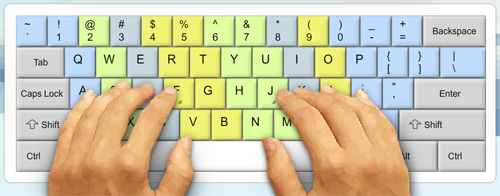
 he next step is to relearn the correct finger placement on the keyboard. If you take a closer look at your keyboard, you’ll notice raised bumps on each of the F key and J key. This is to help you find the correct finger placement without having to look at the keyboard.
Ideally, your index fingers should rest on the F and J keys and the other fingers will fall into place naturally.
In the picture below, you’ll notice color-coded areas showing the keys covered by each finger. You’ll notice that the middle fingers and ring fingers are used for only a few keys on the keyboard, while your index fingers cover the middle section of the keyboard. Navigational, punctuation and function keys are controlled mostly by the little finger.
If this confuses you, head over to websites like the TypingClub or Typing Web where they take you through each step to familiarize yourself with the keyboard. Some of their exercises only involve 2 fingers and as you go through their program, you’ll slowly master the way of faster and proper keyboard typing.


Type Without Looking At Keyboard


 Next up: Touch typing. It’s when you type without having to look at the keyboard. In fact, for seasoned typists, looking at the keyboard actually slows them down.

To get there takes practice, and we’re not talking about hours here. It could be weeks before you condition your fingers to take control of the keys ‘they’ are responsible for. Even if it slows you down, do not revert to how you used to type.

Now, try typing sentences without looking at the keyboard, and try to remember the position of each letter. If you have to sneak a peek at the keyboard, you can, but give the same word or sentence another run, this time without looking at the keyboard. It takes a while but if you are determined, it gets easier every day.

Eventually, you will know where each key is and from then on, it’s just a matter of picking up in terms of speed.


Navigate With Basic Keyboard Shortcuts


It’s no surprise why Windows and Mac OS have many keyboard shortcuts. Since both your hands are already on the keyboard, why spend time using a mouse to navigate? You don’t have to remember every shortcut, just the more common ones.
Common shortcuts below are mostly used in word processing programs:

ShortcutsDescriptions
Ctrl + CCopy
Ctrl + XCut
Ctrl + VPaste
Ctrl + ZUndo
Ctrl + SSave
Ctrl + FSearch for word
Ctrl + AHighlight everything
Shift + Left Arrow or Right ArrowHightlight next letter
Ctrl + Shift + Left Arrow or Right ArrowHighlight next word
Ctrl + Left Arrow or Right ArrowNavigate text cursor to next word without highlight
HomeGo to beginning of line
EndGo to end of line
Page upScroll up
Page DownScroll down
You can also use shortcut keys while browsing the web. Here are some shortcuts you could use to navigate in web browsers.

ShortcutsDescriptions
Ctrl + TabSwitch to next tab
Ctrl + Shift + TabSwitch to previous tab
Ctrl + TOpen new tab
Ctrl + WClose current tab
Ctrl + Shift + TOpen previously closed tab
Ctrl + Rrefresh current webpage
Ctrl + NOpen new web browser window
BackspaceGo back one page
Shift + BackspaceGo forward one page
Finally, here are some common keyboard shortcuts for more general (Windows) navigation.

ShortcutsDescriptions
Alt + TabSwitch to next opened window
Alt + Shift + TabSwitch to previous opened window
Alt + F4Close current window
Using these shortcut keys will require the little finger a lot as many of the modifier keys like Ctrl, Alt and Shift are closest to your little finger.


Practise With Apps


Here's a list of top 5 websites and apps to help you learn typing more faster and achieve long texts in less time.

 1. Keybr.Com


 Keybr is a flash website that helps you typing words to paragraphs with many languages. Many lessons are introduced in Keybr to give more difficulty to levels with more new extra keys like numbers, ponctuations, spaces and others. Also with Keybr you are allowed to import external text source such as a website or document and type it in the Keybr platform, so you can learn to type your own words more easily. You can also test your testing speed measured by Words per Minute (wpm) as well as seeing your personal reports for mistakes you did in lessons.


Keybr Website


2. TypeRacer


 TypeRacer is a funny genre to learn typing faster while racing others with your highest typing speed that you can make. With TypeRacer you can race other people typing words and see your competition compared to other typers. You can also start a race with your friends by sharing a personal link about your competition, and after your friends join you can start beating them. In TypeRacer you have also the opportunity to improve your typing skills with a Practice mode that will help you start typing as a beginner to an expert. TypeRacer have a Top Score leaderboard scores that you can try to beat with your hands typing words.


TypeRacer Website


3. TypeOnline


 TypeOnline is a good online typing platform that will help you solve your problems about achieving long texts at work. With TypeOnline you can start as beginner and make your way to be a super faster keyboard writer with leveled lessons.

Type Online Website


4. WordGames


 Last but not least, WordGames is an another funny typing platform that contains many games to learn typing with different styles. At WordGames you can have fun while learning in a very easy way, most of the games are leveled with different difficulty and extra keys: the more the difficulty, the more the keys used...


WordGames Typing Website


5. Typing Maniac


Typing Maniac is a Facebook game that will get you addicted as you can compete with friends to see who can earn the most points. As words appear on your screen, type them out to make them go away before too many land on the ground and cause you to lose the game! Earn points and get a better score if you achieve each level without missing or misspelling a word.

Typing Maniac Website


Conclusion


With the above 5 Websites that you read about you can easily be a super fast keyboard typer and you can write while looking at the screen ( no longer looking at the keyboard while writing ), thus you can use it in texting, chatting, writing long texts for your homework or work...

Also share this article with your friends and let them know the tricks to speed up their typing - Thank you


Read More »

Friday, 23 November 2012

How to Increase uTorrent, BitTorrent Download Speed

2 comments Posted by Imran at 08:39
Today I'm going to show you how to Increase Torrent Downloading Speed. And you will be shocked after doing this. I suggest you to follow these steps to know how to Increase torrent Downloading Speed. . .


Note


You can apply these Setting to uTorrent and BitTorrent.Most poeple use uTorrent thats why i choose uTorrent For this Tutorial to show how to change settings.But you can apply same settings to BitTorrent. Ok let's Start!!


Steps To Increase Utorrent Downloading Speed


  • Click on "Option"
  • Go to "Preferences"
  • Click on "Bandwidth"

  •  Set

Maximum Upload Rate : ------------------------------- [ 1 ]        or  [ 10 ]

Maximum Download Rate : ---------------------------- [ 1000  ] or  [ 1800  ]

Global maximum number of connections : ------------- [ 2329 ]

Maximum number of connected pees per torrent : ---- [ 100 ] or not more than [ 300 ]

Maximum upload slots per torrent : -------------------- [ 14 ] 


  •  Leave rest Default


Now  final step
  • Click on "Advanced"

  • Look for "bt.connect_speed" Set it to "80"
  • Look for "net.max_halfopen" Set it to "100"
Now All DoNE!! Click on "Apply"
Exit the uTorrent Application and re Run it.......Feel the new speed
(Check out the screen shot below)


 Your Turn


If You Love Our Articles, Then Share This And Help Us In Growing Our Network. . .


Read More »

Friday, 9 November 2012

How to Speed up Your PC Without Any Software

0 comments Posted by Imran at 23:32
Speed Up PC
Your PC don't give the best out of its performance due to many causes that would be present in any computer. Those causes are extremely important to limit the performance of a Computer running Windows as the operating system. If you want to get the best out of your computer (RAM, Processor and Disk Space) then you must follow this step by step tutorial to Clean, Prepare & Optimize your Windows PC without using any Software & Programs.


Learn: How to Speed up Your PC Without Any Software


Startup Programs

1) Click Start> Run...  

2) Type msconfig in the text box, then Hit OK

3) Go to Startup Tab

4) Disable all the unimportant programs (such as: MSN, Skype, Facebook update, Google Update...)

5) Click OK and restart the computer.

msconfig startup

Uninstall Unnecessary Programs

1) Go to Control Panel

2) Under Programs click Uninstall Programs

3) There, you can uninstall all unnecessary programs (such as: App Updater...)
control pannel

Use USB Flash as RAM

You can profit from your USB Flash drive as RAM Memory and boost the performance of your computer. You can follow the tutorial from here:


Clean Temporary and Unused Files

1) Go to Computer

2) Right Click the Drive you want to clean (e.g: C:\ )
3) Click Properties

4) Click Disk Cleanup

5) Wait a little, select the stuffs you want to Clean (such as: Temporary Internet Files, Offline Webpages...)
6) Click OK then Delete Files
My Computer Properties

Done! Remember to restart your Computer after such a long changes. Hope it helped you too.


Read More »

Thursday, 1 November 2012

How to Get All Internet Connection on Public WiFi

0 comments Posted by Imran at 00:01
All Internet Connections
When using a Public WiFi Network in a Cybercafe, School network or even your Home WiFi, you'll probably be sharing the Internet with too many Computer, that what makes the internet connection really slow. Have you dreamed that you can cut off the Internet of all your Network Neighborhood's internet connection to get the Maximum speed? Now you can use the same feature that can be used on netcut, but without any Software.


 Learn: How to Get All Internet Connection on a Public WiFi for Faster Internet 


1) Right Click on Computer > Device Manager

2) Scroll down, expand the Network Adapters list, and Double Click your WiFi Adapter.

 
Network Adapters

3) Then Click Advanced tab to show all available modifications.

Device Manager Advanced Tab


4) Select the property called Speed & Duplex and change the Value from Auto Negotiation to 1.0 Gbps Full Duplex
1.0 Gbps Full Duplex

5) Click Ok to Apply all settings, you may also need to restart the computer.
Done! You'll now get all the Internet Connection and speed up your LAN & WLAN Bandwidth to the maximum speed. Check out Also:

How to Reveal Who Hacked your WiFi
Read More »

Monday, 29 October 2012

How To Hide Data In Mobile Without Software

0 comments Posted by Imran at 01:59
Secure Mobile Data
Have you ever wanted to hide folders in your phone? If yes,there here is very interesting solution for you to hide folders in your phone and youdont even need any software for that.
This trick can be used for any JAVA phone from Nokia,Samsung,Motorola,LG or any other company.


How To HIDE DATA IN MOBILE WITHOUT ANY SOFTWARE

 JUST FOLLOW SIMPLE STEPS

  1. Create any new folder or you can use any existing folder that is to be hidden.

  2.  Rename the folder to any name but with the extension of .jad like if I want to hide my Videos folder then I will name it as VIDEO.jad

  3. Now create a new folder with the same name in the same directory but with the extension of .jar So, I would create the folder with the name VIDEO.jar

  4. And thats it!! My orignal images folder which has been renamed with .jad gets hidden and only folder with .jar extension is visible which is empty. So,my data is protected/hidden from unwanted eyes.

NOTE:

To unhide the orignal folder you have to remove the .jar extension from the new folder and your orignal folder with all the files and with .jad will become visible.

Read More »

Wednesday, 24 October 2012

How to Read QR Code Using PC & Webcam

0 comments Posted by Imran at 13:00
Quick Response Code
 Quick Response Code (QR Code) is a type of barcode but it has a faster readability and larger storage capacity compared to the traditional UPC Barcode. QR Code has become more popular since it's used in all type of products (such as Mobile Phones, Cars, Computers, Products...). The process to read a QR Code is very simple using a Computer software (to scan an image in the computer) or Webcam (to scan an image in a device). Following this step by step tutorial will certainly teach you the way to Scan and Decrypt QR Codes using a Software or using the Webcam.


How to Read QR Code Using PC Software

To scan an Internal QR Code image


1) Download bcTester

2) Extract bctester_en.zip and run the Setup.

3) After finishing the setup, launch the program.

4) Click File > Open icon, and select an Image or PDF File to decode.
BcTester 4.8
5) Click the QR Icon to decrypt it.

How to Read QR Code Using PC Webcam


To scan an External QR Code Image


1) Download bcWebcam

2) Extract and Install the program.

3) Launch the software and follow the next steps:
QR using PcWebcam

Done!

Remember to Share this Trick


Read More »

Monday, 15 October 2012

How to Search and Update Your Drivers Automatically [Med]

0 comments Posted by Imran at 22:25

After Formatting your computer or re-installing Windows , it's truly a big problem when you lose your PC's drivers. It's a common problem that every computer user could face. Knowing your Hardware Drivers ID may help in such cases, but how about losing the information about your Hardware drivers? Or Losing your Drivers CD? This tool called DriverMax (Free users can Download Drivers) can help you identify unknown hardware drivers, search for the missing drivers or updates, and download your them with a single click providing high secured direct link server using only your Internet connection.


How to Search, Find and Update Your Drivers Automatically


1) Download and Install DriverMax Free Download
2) Launch DriverMax and Click on Scan for Updates Now


3) You'll get a list of the Missing Drivers on your Computer.
4) Click Download button to download the driver you want.


5) Select Continue As FREE User
 
Free Users can Download 2 Drivers per Day, that would be helpful.
Done! After Installing all required drivers be sure to Restart your Computer to apply driver changes.
 
Read More »

Tuesday, 2 October 2012

How to Download Torrent Files Direct HTTP Link [Med.]

0 comments Posted by Imran at 04:54


Hi Folks & Fans, I was in a trip so my website wasn't getting too much articles. Today's article is about How to Download Torrent Files Directly from your Browser with HTTP Link & Resume ability (fastest speed). Yes it's possible that you can do that using a 3rd party website that will download and cache the Torrent file content and provide users with Direct HTTP Link for faster speed and resume ability. This website has a Free & Paid services, you can use the Free service as much as you want to download torrent files, and You can use Internet Download Manager (IDM) to download high speed.. This method will help you download torrent files that don't have too much seeders or low health.


How to Download Torrent Files Direct HTTP Link 

1) Search for the .Torrent file or Magnet link you want to download. (You can use torrentz.com )
2) Go to zBigz website.
3) You can Paste the Link of the Torrent file or Magnet Link or Upload the .Torrent File. Then Click GO
4) When Asked, choose Free Service


5) It will starts caching the torrent file content to the server ( In my case 5.8 GB took around 30 seconds to cache)
6) Now you can download the content File by File, or Choose the ZIP Package.
7) After selecting the files to download, It will starts a direct HTTP Download.
 Done!


Read More »

Thursday, 16 August 2012

Top 4 Ways to Access Blocked Websites

0 comments Posted by Imran at 18:19
Some of the bad cases an Internet user could face, is the Internet Censorship. Internet Censoring is now everywhere in Countries, Office, School or even in your home computer. Censorship is a method to exclude some undesirable websites from the list of accessible severs. Every time a user wants to access a website, by typing the full URL in the address bar, a http request is sent to the Filter (censoring) then to the server and then responds with the result.


Top 5 Ways to Access Blocked Websites

I Listed this tricks from the Easiest to the Hardest:


1. Use Online http Proxy

  1) Visit an Online http Proxy website (e.g: vtunnel.com )
  2) Type the URL you want to visit.
  3) Click Go
  4) Done! You'll be redirected to the website.
Note: You can find a big list of http Proxies here : Online Proxy List

2. Access Website by IP

  1) Launch Command Prompt (CMD)
  2) Type the following command:   tracert www.itwebister.co.nr
  3) Replace "itwebister.co.nr" with the website you want to access and Hit Enter.
  4) You'll Get the IP Address of the Website like shown below.
  5) Copy the IP Address and Paste it in the address bar of web browser.
  6) Done! You'll be redirected to the website.

3. Use Translation Services

   1) Go to Google Translate
   2) In the text field, write the URL you want to access.
   3) You'll be given by a Link as translation result (in the right) Click it.
   4) You'll access the full website.
Note: You can also try Bing Translator as an alternative.

4. Using TOR: The Onion Router

TOR is the most secure anonymity network software that provides a huge: Relay list from all over the World which helps you to hide your IP thus your Identity to access any Blocked / Restricted website.

Read More »

Monday, 13 August 2012

How To Optimize and Speed up your PC

0 comments Posted by Imran at 14:29
  Are you stuck with your PC's old hardware equipment? Have you wanted to boost your PC's performance? You want your PC to give its best? OK, today  I'm sharing with you this freeware which will increase the performance of your PC up to X2 times than before. This freeware is a little program that will take care of all unusual processes and services, which are running in background, with killing the right amount of unimportant tasks it will gathers all free memory and dedicate it to the software you are running. JetBoost improves your Computer's performance with the following features: close not required tasks, clean RAM for faster performance, set priority to a single software to speed-up startup process, able to choose the mode to boost your computer...


How to Optimize/Boost and Speed up your PC's Performance

1) Go to JetBoost and click Download.
2) Launch the Setup and Install it.
3) After installing it, Run JetBoost
4) You'll be prompted with this screen:
5) Select the Optimization mode as per your need (e.g: For Work )

    For Work: is usually perfect for softwares like Photoshop...
    For Game: is the mode that perfectly boost up any game's performance...
    Custom: is to set up your custom settings.


6) You can choose Custom option, and select the processes and services you want to kill.

7) After selecting the appropriate mode, click Start Boost


Done! You can now notice your PC's performance have increase by around 50% or more. To test it you can launch any slow program and see the difference of time of startup.
Read More »

Sunday, 5 August 2012

How to Use a Flash Drive as RAM Memory

0 comments Posted by Imran at 15:50
Do you have a slow or old Computer? Also, do you have a USB Flash Drive? Then now you are able to extend its memory by Increasing the RAM of your Computer using the memory available on the USB Flash Drive. This stuff is a trick that Windows provided as a solution to boost a little of your RAM memory and evade those little lags that Windows produces when it runs out of RAM resource. Increasing the PC's RAM using USB Flash Drive will help also enhance games performance and decrease the time of execution of some tasks made by software.


How to Use a Flash Drive as RAM Memory


Windows XP

1) Insert the Flash Drive then Right Click on Computer > Properties
2) Navigate to Advanced tab then click Settings under Performance section.
3) Click Advanced tab again, and click Change under Virtual Memory section.
4) Select the USB Flash Drive letter from the list, click Custom Size .
5) Set the minimum and maximum size to use in the Flash Drive (better choose same size of flash drive)

6) Press OK and Apply all settings, Restart your Computer for changes to take effect.


Windows Vista / 7


1) Insert USB Flash Drive into your computer.

2) Right Click on the USB Flash Drive > Properties

3) Navigate to ReadyBoost tab.

4) Select Use this Device and allocate the amount of memory to use (better choose around 80% of USB Flash Drive's size)


5) Click OK to apply all settings, then Restart the computer for changes to take effect.


Read More »

Saturday, 4 August 2012

How to Get a Virtual Online Computer

0 comments Posted by Imran at 11:29
This trick is to get a totally Free Online Virtual Computer that you can manage on your own: You can upload pictures, put music and audio files then edit them using some programs, change the theme to Windows, Linux or Mac with simple clicks. This website is called Cloudo, it's another way to manage your cloud on the Internet, it gives a very great and easy interface to make it more flexible with the user. Cloudo is especially dedicated to the Office use: Sending emails, writing and editing documents (txt, word, pdf...). All of this is made with a one simple tool that you can access from anywhere with your account.


How to Get a Virtual Online Computer 

1) Go to Cloudo and Click Signup

2) Fill in with your information to complete signup.


3) After signing up, you'll be directly logged to your Virtual Computer.


4) As you can see in the picture above, The computer is ready to use and it's totally yours.

5) Here is the start menu, and you can see what you can do with it:


Done!


Read More »
 

Popular Posts

© 2011. All Rights Reserved | ITWebister | Template by Blogger Widgets

Home | About | Top ▲