Powered by Blogger.

Thursday, 13 June 2013

How To Safe Your Facebook Account From Hacking By Social Engineering

0 comments Posted by Imran at 00:38
Safe From Social Engineering
Hacking a Facebook account is truly impossible now after Facebook have improved their Security and closed almost all type of Exploits that have been found by Hackers. But social engineering is only the trick which facebook are any other social media network like twitter can't close, I'm going to show in this article, a Penetration Trick that cannot be and will not be closed by Facebook (or any other Social Network) and the way to be safe from this kind of hacking (social engineering). This trick consists of a Social Engineering Penetration Hack. We will see what it means and how it works in this step by step Tutorial.


What is Social Engineering Hacking?


Social Engineering is a penetration method that hacker uses to access personal and secure information, by having some knowledge about the victim or by tricking and convincing the victim into giving him some useful and important things, those things can be the Answer of the Security Question of his Online Account. Having the Security question's answer will help a lot in hacking the Facebook account.

If i simply define social engineering then it is the method to make victim fool. . .


Why Facebook is Weak against Social Engineering Hack?


Like we said, Social Engineering help you find very important and secure information about the victim like having the answer of the Security Question, which totally make Facebook kneel down against this trick, because the security question cannot be changed after creating the account, which make it totally breakable with social engineering. Any other social network website like twitter, is also weak facing Social engineering.

What Hackers Require To Hack Facebook Account Using Social Engineering


Social Engineering on Facebook can be performed by using No Tool, Programs or Software, the Only thing that are required are: a Smart brain OR Some knowledge about the victim. As i told you before that its just the method to make the victim fool. . .


How To Be Safe From Social Engineering


Hackers use their mind to ask you your security question by the flirt are something else, no matter the hacher is your friend are your enemy or your stranger etc, if someone ask your personal info then you have to be sure that is the safe to tell him/her your personal info. . . As i told you before that once you enter your security question you can't able to change it again, but if you are going to create your new account on facebook then two things i wanna tell you to be safe from social engineering. . .

1. what ever your security question is make sure its answare not to be true

yes whatever your security question is, it is possible that your family member or your best friend know that so make sure the answare of your security question is the one that know only you. . .


A good security question will have the following characteristics:


1.  Easy to remember, even 5 or 10 yrs from now
2.  At least thousands of possible answers
3.  Not a question you would answer on facebook, myspace, in a "Fun Questions to Ask" survey, or in a article or interview
4.  Simple one or two word answer
5.  Never changes

2. Don't use Security question if you believe that your Email is protected


if you don't use your securiy question then it is good enough, if hackers want to hack your account they are unable to go after recovery method of email or mobile notification, and if your email is protected like gmail allows user to be safe using mobile message notification then its good to not enter your security question, then its only ask hacker to recover your facebook account using email address that hacker can't. . .


Read More »

Wednesday, 12 June 2013

How To Protect Registry From Malwares/viruses

0 comments Posted by Imran at 23:14
Internet world is full viruses and it is difficult for an ordinary user to deal with such issues. However, knowing a little bit about this would make your life easier. The Registry of Windows is a sort of internal database that stores all programs configurations and options. Since Windows doesn't prompt users of any new entry added to the Registry, it's easy that some malicious programs can tweak up your registry just to infect your computer (for example by adding a new entry to launch the virus on every Windows startup). To protect your registry from those harmful attacks, you need to monitor unwanted actions imported to the registry on every new program setup, run or modification, to do so by ourselves is almost impossible since the Registry contains millions of entries. In this article I'm going to show you 2 Ways to Protect your Computer from Registry malwares/viruses


1. Monitor Registry Changes Software


registry monitor software


 This software is no doubt a registry monitor but works in a different way, it takes a snapshot (current image of the registry) and starts listening for any new entries and - in realtime - comparing the current registry to the old created snapshot, if a difference is found then it will lists it. Another feature of this software is that you can monitor (listening) on a specific branch (example: HKLM only or HKLM/Software/Microsoft ) what will make it easy to find any suspicious access.

Download Monitor Registry Changes Software


2. Registry Alert


Registry Alert is the best free easy & Reliable Registry monitoring tool, it allows users to protect their computer's sensible database (reg) from different malicious programs. Once installed, it will be running reduced and in stealth mode. Whenever a new program (malicious or not) demands access to registry, the program will prompt you with a Yes or No buttons to allow or not the program to access and modify your registry. If it's a trustworthy program and it was ran by you then simply click Allow to enable registry access.


Download Registry Alert
Read More »

Thursday, 6 June 2013

Download iTunes 11.0.4 (32-bit) Free And Full

0 comments Posted by Imran at 22:04
iTunes V11.0.4 (32-bit)

iTunes is a free application for Mac and PC. It plays all your digital music and video. It syncs content to your iPod, iPhone, and Apple TV. And it's an entertainment superstore that stays open 24/7.

• Organize your music into playlists
• Edit file information
• Record compact discs
•Copy files to an iPod or other digital audio player
•Purchase music and videos on the Internet through the built-in iTunes store
• Run a visualizer to display graphical effects in time to the music
• Encode music into a number of different audio formats.
• This is the 32-bit version.


Specifications


Title: iTunes 11.0.4 (32-bit)
Filename: iTunesSetup.exe
File size: 84.98MB (89,111,376 bytes)
Requirements: Windows XP / Vista / Windows7 / Windows8
Languages: Multiple languages
License: Freeware
Date added: June 6, 2013
Author: Apple Inc

This update fixes a problem that may cause iTunes to quit if you switch between wired and wireless syncing and addresses an issue that may require you to log into the iTunes Store repeatedly.


Read More »

Thursday, 30 May 2013

How To Make Google Chrome To Use Less RAM

0 comments Posted by Imran at 05:06
Chrome Uses Less Ram

Most of the people now prefers Google Chrome as the greatest web browser ever released, it's well known with the best performance and simple user interface which makes it easy to use for all kind of people, it takeover more than 50% of the Web Browsers usage in the world. However some of its users might face a serious problem about Huge Memory Consumption from Chrome, it starts draining your computer's available RAM and prevents you from performing any other tasks like gaming. So here are some few tips that will help you reduce Google Chrome's memory leaks.


1. OneTab Extension


OneTab is a great extension that helps Chrome reduce memory usage by closing and regrouping all the opened tabs in one click. Whenever you find that you opened many tabs and you don't need any of them for the moment, just click OneTab from the extension bar and it will close all those tabs to regroup them in a single list for later use. OneTab can help you reduce more than 90% of RAM


Onetab Extension For Chrome


2. Kill Memory Eating Tabs / Extensions


Google Chrome came with a built-in task manager that will help you identifying memory eaters (Tabs and Extensions). It lists all opened and running pages with their memory usage. Pages that uses too much of RAM are pages running many scripts (Javascript...), plugins(Flash, Java...), after identifying them you just kill their tasks. Here's how to do it:


  • Press Shift + Esc (opens Task Manager)
  • Double Click the Memory tab (reorders tasks by memory)
  • Select the pages with High Memory and click End Process


3. TGS Extension


TGS or The Great Suspender is a very important Chrome utility that auto kills idle tabs, what that means? Ok, while using Google Chrome all opened tabs are draining memory even when we don't use them, so that's why we use TGS as it helps us auto killing those non-used tabs (idle) after specified time (5minutes to 60 minutes) which will improve your computer's speed by gaining more memory.
After you install The Great Suspender, Right Click the extension > Options and setup your configuration (whitelist, timeout..)

Read More »

Monday, 6 May 2013

PhotoScape v3.5 Full Download Full Version - Amazing Photo Editing Software

0 comments Posted by Imran at 11:22
Photoscape v3.5
PhotoScape is an all-in-one style photo editor with fun and ease of use. Major capabilities are: viewer, editor, batch editor, page, combine, animated GIF, print, splitter, screen capture, color picker, rename, raw converter, resizing, brightness/color/white-balance adjustment, backlight correction, frames, balloons, text, drawing pictures, cropping, filters, red eye removal and blooming. PhotoScape has been used for two years and is expanding its features continuously.
Photo-scape is a fun and easy photo editing software that enables you to fix and enhance photos.


 Key Features


Viewer: View photos in your folder, create a slideshow
Editor: resizing, brightness and color adjustment, white balance, back light correction, frames,             balloons, mosaic mode, adding text, drawing pictures, cropping, filters, red eye removal, blooming,     paint brush, clone stamp, effect brush
Batch editor: Batch edit multiple photos
    Page: Merge multiple photos on the page frame to create one final photo
Combine: Attach multiple photos vertically or horizontally to create one final photo
Animated GIF: Use multiple photos to create a final animated photo
Print: Print portrait shots, carte de visits(CD V), passport photos
Splitter: Slice a photo into several pieces
Screen Capture: Capture your screenshot and save it
Color Picker: Zoom in on images, search and pick a color
Rename: Change photo file names in batch mode
Raw Converter: Convert RAW to JPG
Paper Print: Print lined, graph, music and calendar paper
Face Search: Find similar faces on the Internet


ScreenShots. . .


Photoscape v3.5

Photoscape v3.5

Photoscape v3.5

Photoscape v3.5


Download


Read More »

Thursday, 2 May 2013

How to Earn Money By Writing Captcha Codes

0 comments Posted by Imran at 01:50
Captcha are the verification words you enter when signing up in any website, those words are to prevent robots from making multiple accounts or gaining multiple access on the platform. We already written an article about How to Bypass Re-Captcha Words , that extension used is from this website which pays users to enter captcha words, then it creates a huge database to use the extension of google chrome and you're able to bypass captcha words. You can earn money from writing captcha codes with this tutorial.
Now I am starting Money Making Tricks This Is my First Trick And Inshahallah i will Post other tricks Of Money Making Online Soon. . .


How it Works?


Writing captcha codes needs a human to be able to solve it, even robots that can bypass Captcha words they are based on humans that have typed it in the past, that's how this trick works. It pays you to write captcha words for them to be able to make a robot that can bypass them easily, and the robot will be paid for users.


How to Earn Money Writing Captcha Codes


1) Go to MegaTypers website

2) Click on Free Signup button to access the registration page.


 3) Enter your Account information: Email, Password, Name...

Note-1: The Payment Method will not be changed later, so select it wisely...

Note-2: The Invitation code is : 6GPB


 4) Check the button that says Important, Enter the verification words from the image and Click Register.


5) After Clicking Register, a new Tutorial page is shown and you can use it to learn some useful menu options. You can also click Skip Tutorial and continue with this guide.


 6) Here's the different parts of the website and their functions:


     6.a) This statistics table is the Payout Rates per 1000 Images: depends on Time of work and Hours of Work, be sure to work on a high payout time.


6.b) The Solve Images tab: here you can solve verification codes and earn money, this method is very slow and you have to wait 15 seconds on every captcha.


 6.c) The Solve Images faster tab: can help you solve images faster with less timeout and waiting times, with realtime payment so you can earn money faster.


6.d) The Profile and Payments tab: is to request payments and other personal info.

   6.e) The Affiliate tab: you can refer friends so that you can earn money while they work 10% of their earnings go to your balance.


7) This is what you need to know to start using MegaTypers and make some extra money in your pocket.

Share This Post With Your Friends And Let Them Know About The Easy Way To Make Money Online


Read More »

Saturday, 27 April 2013

How To Type Faster? 5 Websites To Learn To Type Faster

0 comments Posted by Imran at 01:10
Living in the digital world where typing is necessary for every person, Learning the way of proper usage of keyboard is necessary for every person, A person should be more productive and get thinks done quicker with a keyboard, typing faster can enable you to keep up with your brain.
In this article, we’ll give you Some tips to get you started typing faster and proper and also introduce you some websites that may help you to improve your typing. Some of the tips are quite obvious ones, but we’ll provide you with a few apps to help you practice and learn faster.


Get Rid Of Bad Habids


Getting rid of your bad typing habits is probably the hardest thing to do. You’ve probably been using the same typing method since you started using a keyboard, right down to where you place your palms. If you’re an FPS (First Person Shooter) gamer you’re probably used to placing your left hand on the WASD keys, and may have stronger fingers on your left hand than your right (speaking from experience here).
Others may type only with two fingers, hovering over ten (or more) keys each, always having to keep their eyes on the keyboard to get the right keys. Although you might be typing fast with only half of the needed fingers, you have to put down your foot (or your hands) and break that habit immediately.


Use All 10 Fingers


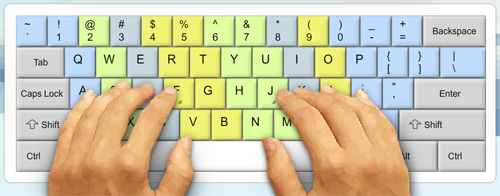
 he next step is to relearn the correct finger placement on the keyboard. If you take a closer look at your keyboard, you’ll notice raised bumps on each of the F key and J key. This is to help you find the correct finger placement without having to look at the keyboard.
Ideally, your index fingers should rest on the F and J keys and the other fingers will fall into place naturally.
In the picture below, you’ll notice color-coded areas showing the keys covered by each finger. You’ll notice that the middle fingers and ring fingers are used for only a few keys on the keyboard, while your index fingers cover the middle section of the keyboard. Navigational, punctuation and function keys are controlled mostly by the little finger.
If this confuses you, head over to websites like the TypingClub or Typing Web where they take you through each step to familiarize yourself with the keyboard. Some of their exercises only involve 2 fingers and as you go through their program, you’ll slowly master the way of faster and proper keyboard typing.


Type Without Looking At Keyboard


 Next up: Touch typing. It’s when you type without having to look at the keyboard. In fact, for seasoned typists, looking at the keyboard actually slows them down.

To get there takes practice, and we’re not talking about hours here. It could be weeks before you condition your fingers to take control of the keys ‘they’ are responsible for. Even if it slows you down, do not revert to how you used to type.

Now, try typing sentences without looking at the keyboard, and try to remember the position of each letter. If you have to sneak a peek at the keyboard, you can, but give the same word or sentence another run, this time without looking at the keyboard. It takes a while but if you are determined, it gets easier every day.

Eventually, you will know where each key is and from then on, it’s just a matter of picking up in terms of speed.


Navigate With Basic Keyboard Shortcuts


It’s no surprise why Windows and Mac OS have many keyboard shortcuts. Since both your hands are already on the keyboard, why spend time using a mouse to navigate? You don’t have to remember every shortcut, just the more common ones.
Common shortcuts below are mostly used in word processing programs:

ShortcutsDescriptions
Ctrl + CCopy
Ctrl + XCut
Ctrl + VPaste
Ctrl + ZUndo
Ctrl + SSave
Ctrl + FSearch for word
Ctrl + AHighlight everything
Shift + Left Arrow or Right ArrowHightlight next letter
Ctrl + Shift + Left Arrow or Right ArrowHighlight next word
Ctrl + Left Arrow or Right ArrowNavigate text cursor to next word without highlight
HomeGo to beginning of line
EndGo to end of line
Page upScroll up
Page DownScroll down
You can also use shortcut keys while browsing the web. Here are some shortcuts you could use to navigate in web browsers.

ShortcutsDescriptions
Ctrl + TabSwitch to next tab
Ctrl + Shift + TabSwitch to previous tab
Ctrl + TOpen new tab
Ctrl + WClose current tab
Ctrl + Shift + TOpen previously closed tab
Ctrl + Rrefresh current webpage
Ctrl + NOpen new web browser window
BackspaceGo back one page
Shift + BackspaceGo forward one page
Finally, here are some common keyboard shortcuts for more general (Windows) navigation.

ShortcutsDescriptions
Alt + TabSwitch to next opened window
Alt + Shift + TabSwitch to previous opened window
Alt + F4Close current window
Using these shortcut keys will require the little finger a lot as many of the modifier keys like Ctrl, Alt and Shift are closest to your little finger.


Practise With Apps


Here's a list of top 5 websites and apps to help you learn typing more faster and achieve long texts in less time.

 1. Keybr.Com


 Keybr is a flash website that helps you typing words to paragraphs with many languages. Many lessons are introduced in Keybr to give more difficulty to levels with more new extra keys like numbers, ponctuations, spaces and others. Also with Keybr you are allowed to import external text source such as a website or document and type it in the Keybr platform, so you can learn to type your own words more easily. You can also test your testing speed measured by Words per Minute (wpm) as well as seeing your personal reports for mistakes you did in lessons.


Keybr Website


2. TypeRacer


 TypeRacer is a funny genre to learn typing faster while racing others with your highest typing speed that you can make. With TypeRacer you can race other people typing words and see your competition compared to other typers. You can also start a race with your friends by sharing a personal link about your competition, and after your friends join you can start beating them. In TypeRacer you have also the opportunity to improve your typing skills with a Practice mode that will help you start typing as a beginner to an expert. TypeRacer have a Top Score leaderboard scores that you can try to beat with your hands typing words.


TypeRacer Website


3. TypeOnline


 TypeOnline is a good online typing platform that will help you solve your problems about achieving long texts at work. With TypeOnline you can start as beginner and make your way to be a super faster keyboard writer with leveled lessons.

Type Online Website


4. WordGames


 Last but not least, WordGames is an another funny typing platform that contains many games to learn typing with different styles. At WordGames you can have fun while learning in a very easy way, most of the games are leveled with different difficulty and extra keys: the more the difficulty, the more the keys used...


WordGames Typing Website


5. Typing Maniac


Typing Maniac is a Facebook game that will get you addicted as you can compete with friends to see who can earn the most points. As words appear on your screen, type them out to make them go away before too many land on the ground and cause you to lose the game! Earn points and get a better score if you achieve each level without missing or misspelling a word.

Typing Maniac Website


Conclusion


With the above 5 Websites that you read about you can easily be a super fast keyboard typer and you can write while looking at the screen ( no longer looking at the keyboard while writing ), thus you can use it in texting, chatting, writing long texts for your homework or work...

Also share this article with your friends and let them know the tricks to speed up their typing - Thank you


Read More »
 

Popular Posts

© 2011. All Rights Reserved | ITWebister | Template by Blogger Widgets

Home | About | Top